
Google Workspace Automation – What You Can Automate with Google Apps Script, Sheets, Drive and More
by Sebastian Voppmann
Google Workspace is already in place at most companies — and is still mostly used as just a file storage system. Emails in Gmail, files in Drive, spreadsheets in Sheets, documents in Docs. That’s the visible layer. What most people never use: the complete automation ecosystem sitting right underneath it.
Google Apps Script is the automation language that connects all Google services to each other and allows them to talk to external tools. Free, integrated directly into Google Workspace, no external servers required. Anyone already paying for Google Workspace has a complete automation tool included — one that’s just waiting to be used.
This article covers what can actually be automated: which processes, which workflows, which integrations. No abstract theory — only automations we run ourselves and that can be replicated directly. Claude Code writes all scripts on demand — you don’t need to be a developer to fully automate Google Workspace.
What Google Workspace Automation Actually Means
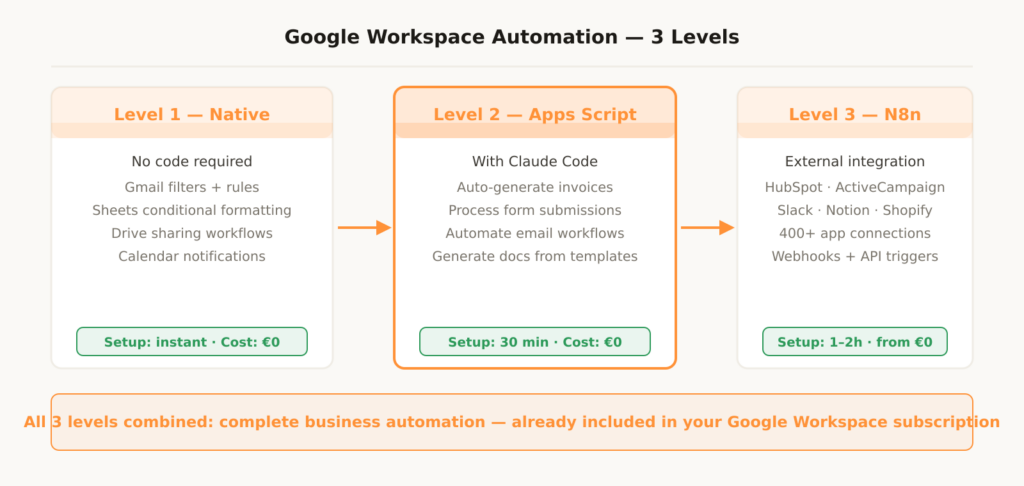
Google Workspace automation works on three levels. The first level consists of native automation features accessible without any coding: rules in Gmail, conditional formatting in Sheets, automatic sharing workflows in Drive. This level handles simple, recurring tasks with zero setup effort.
The second level is Google Apps Script. This is JavaScript that runs directly inside Google Workspace and connects all services together. Sheets, Docs, Drive, Gmail, Calendar, Forms, Slides — everything is accessible via Apps Script. A script runs directly in the Google Cloud, no external server, no hosting costs. Claude Code writes these scripts in minutes on demand — no programming knowledge required.
The third level is integration with external tools via N8n or direct API connections. Google Workspace becomes the data hub: invoice data from Sheets flows automatically into your CRM, new Drive files trigger N8n workflows, Google Forms submissions land directly in HubSpot. The full N8n strategy is documented in the article N8n Automation – All the Areas You Can Automate With It.
Together, this forms a complete automation system that most businesses are already paying for — it just needs to be switched on.
Area 01 – Google Sheets Automation
Google Sheets is far more than a spreadsheet. With Apps Script it becomes a central database, reporting tool, invoicing system, and automation control center. Everything that happens repetitively in a spreadsheet — entering data, calculating formulas, generating reports, sending emails — can be automated.
1.1 Automatic Invoice Generation from Sheets
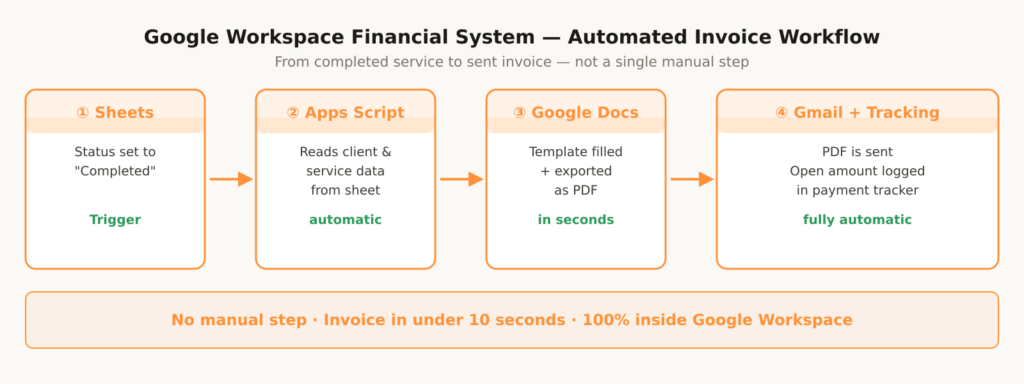
This is one of our most-used Google Workspace workflows. Google Sheets serves as the data source: client names, services, hourly rates, project numbers. When “Create invoice” is entered in a defined column, an Apps Script fires automatically: it reads the row data, fills a Google Docs invoice template with the client data, exports the document as a PDF, sends it directly to the client via Gmail, and logs the open amount in the payment tracking sheet.
Claude Code writes this script on demand in under five minutes. The one-time prompt: “Write a Google Apps Script that automatically generates an invoice as a PDF from row X in this sheet, using this Google Doc template, and sends it via Gmail to the email address in column C.” The finished script including error handling and logging comes back immediately — production-ready, deployable right away.
1.2 Automated Reports and Dashboards
Weekly or monthly reports that always follow the same structure are classic automation candidates. An Apps Script reads all relevant metrics from different sheets, calculates totals, averages, and month-over-month changes, creates a formatted report tab, and sends it automatically via email or Slack — every Monday at 8am, with no manual intervention.
For visually polished dashboards, Looker Studio connects directly to Google Sheets as a data source and updates in real time. The reporting dashboard is built once — after that, all data flows in automatically, without anyone copying numbers or updating tables.
1.3 Data Validation and Quality Control
Apps Script automatically checks data entries in Sheets for completeness and plausibility. Missing required fields are flagged, duplicate entries are detected, invalid formats are signaled directly in the cell. This prevents bad data from entering the system before it propagates through all downstream processes — and saves the time that would otherwise go into manual data cleanup.
The most effective way to create Google Apps Scripts: ask Claude Code with a concrete, data-describing prompt. Not “Write a script for invoices” — but “Write a Google Apps Script for a sheet with these columns: A=Client name, B=Service, C=Amount, D=Email, E=Status. When column E says ‘Create invoice’, the script should generate a PDF invoice from the Google Doc with ID [ID] and send it to column D.” The more specific the prompt, the more production-ready the script.
Area 02 – Gmail Automation
Gmail is the most used and at the same time most underestimated automation area in Google Workspace. Every email that’s manually answered, sorted, forwarded, or archived every day is an automation candidate.
2.1 Intelligent Email Sorting and Label System
Gmail filters are the easiest entry point — no coding at all. Sender, subject keywords, CC recipients: Gmail automatically sorts incoming emails into labels, marks them as read, forwards them, or archives them directly. A filter system configured once with ten to fifteen rules reduces daily inbox processing from 30 to under 10 minutes.
Apps Script goes further: Claude API classifies incoming emails by urgency and topic based on content — not just keywords — and Apps Script automatically sets labels, creates tasks in Notion, or routes to the responsible person. What Gmail filters can’t do, Claude handles.
2.2 Automated Replies and Email Templates
Recurring email types — application confirmations, invoice confirmations, support acknowledgments — run completely automatically via Apps Script. A trigger identifies the email type based on subject keywords or sender domains and automatically sends the appropriate reply — personalized with the sender’s name, the subject line, and relevant client data from the linked sheet.
2.3 Gmail as a Trigger for External Workflows
Gmail triggers in Apps Script are especially powerful for company-wide workflows. New email with subject “New Application” → Apps Script extracts attachments and sender data → Claude API creates a structured candidate summary → Notion API automatically creates a recruiting entry → Slack notification to HR. This workflow runs entirely within Google Workspace without N8n — keeping infrastructure simple and eliminating external dependencies.
Area 03 – Google Drive Automation
Google Drive is used as a passive storage system in most companies. With Apps Script it becomes an active workflow tool: files trigger actions, folder structures are created automatically, documents are generated and shared automatically.
3.1 Automatic Project Folder Structure
Every time a new project is created in the project database in Google Sheets, Apps Script automatically builds the complete folder structure in Drive: a main folder with the project name, subfolders for briefings, assets, deliverables, and invoices, permissions set automatically for all project participants, and an empty project briefing template duplicated from the master template and placed in the folder.
What used to be five minutes of manual work per project now runs in under ten seconds, fully automatically. With ten new projects per month, that’s already over eight hours saved per year — for just this one workflow.
3.2 Automatically Generating Documents from Templates
Apps Script can fill Google Docs templates containing variable placeholders and save them as new documents. Proposals, contracts, onboarding documents, reports — any format that always follows the same base structure but contains variable content can be automated. The data comes from Sheets; the result is a fully populated Google Doc or PDF in seconds.
3.3 Drive as an N8n Trigger
N8n monitors Google Drive folders via the native Drive trigger. New file appears in a defined folder → N8n automatically starts the linked workflow. We use this for the YouTube upload workflow: drop the finished video file into the upload folder → N8n automatically handles the entire upload process including metadata generation via Claude API. No manually opening YouTube Studio, no typing titles, no filling in tags.
Area 04 – Google Forms Automation
Google Forms is the most underrated data entry channel in Google Workspace. Every form submission can automatically trigger workflows — no manual checking of the sheet, no manual routing.
4.1 Forms as Universal Workflow Triggers
Apps Script responds to every new Google Forms submission: New lead form → automatic confirmation email to the sender, write data to HubSpot via API, Slack notification to sales, entry in the lead tracking sheet. All in one Apps Script function that fires automatically with every form submission.
4.2 Dynamic Forms with Automatic Control
Apps Script can modify Google Forms dynamically — adding questions, updating options, deactivating forms. An event registration form automatically checks remaining capacity from a Sheets tracker and deactivates itself when all spots are filled. No manual intervention needed, no overbooking possible.
4.3 Application Forms with AI Processing
Job applications submitted via Google Forms are fully pre-processed automatically with Claude: New submission → Apps Script reads all fields, Claude API analyzes the free-text portion of the application and creates a structured summary with core competencies, strengths, and potential gaps, Notion API creates the candidate in the recruiting board, automatic acknowledgment is sent. The HR person sees an already-processed summary in the Notion board — without having manually read the application.
Area 05 – Google Calendar and Google Docs Automation
Calendar and Docs are two further Google Workspace services with significant automation potential — and are still used entirely manually in most companies.
5.1 Automatic Meeting Preparation
Apps Script checks the calendar daily and automatically creates a preparation summary for all meetings the following day: attendee list, latest notes from the previous meeting with the same participants, relevant documents from Drive. Claude API generates a first agenda draft based on the meeting description. Every morning at 7am the recipient receives everything they need for that day’s meetings via email — without a single manual step.
5.2 Calendar Data for Time Tracking and Reporting
Apps Script can systematically analyze calendar data: How many hours were spent in client calls last week? Which projects consumed the most calendar time? This data is automatically written into a Google Sheets dashboard and prepared for the weekly report — no manual time tracking, no separate time tracking tool.
5.3 Contract and Proposal Generation from Google Docs Templates
Google Docs as a template source combined with Apps Script is the most affordable solution for automated document generation. All placeholders in a Docs template are populated with data from Sheets: client name, date, scope of services, prices, term, payment terms. The finished document is exported as a PDF, saved in the client folder in Drive, and optionally sent via Gmail. Claude Code writes the required script in under ten minutes.
- Week 1: Set up Gmail filters — reduce inbox processing to 10 minutes daily
- Week 2: Build the invoice script with Claude Code — your first productive Apps Script
- Week 3: Use Google Forms as triggers for workflows — automate lead capture
- Week 4: Set up automatic project folders in Drive — folder structure via script
- Month 2: Build the financial system — automate payment tracking and dunning
- Month 3: Connect N8n — integrate Google Workspace with external tools
Area 06 – Google Workspace as a Complete Financial System
This is the area we use most intensively ourselves. Google Workspace as a complete financial system — invoicing, payment tracking, dunning, reporting — fully automated, without expensive accounting software for standard processes.
6.1 The Complete Invoicing and Payment System
The system consists of three Google Sheets tabs: a client master with all client data, a service tracker with open and completed project services, and a payment tracker with all invoices, statuses, and due dates. Apps Script connects these three tabs into a complete invoicing system.
When a service is marked as completed: Apps Script reads client and service data, fills the invoice template in Google Docs, exports as a PDF, sends it via Gmail, logs the invoice number and open amount in the payment tracker. When a payment comes in: status update in the tracking sheet, automatic receipt email to the client. Fully automated, entirely within Google Workspace — zero external tools needed.
6.2 Automated Dunning with N8n
N8n runs daily and checks all open items in the payment tracking sheet. Overdue by 7 days: first reminder email via Gmail, generated by Claude API in the brand voice style — friendly, concrete, no emotional overhead. Overdue by 14 days: second reminder with a direct payment link. Overdue by 30 days: escalation email and Slack notification. Every action is automatically written back into the tracking sheet.
6.3 Financial Reporting in Looker Studio
Looker Studio connects directly to the Google Sheets financial data and creates a real-time dashboard: revenue by month, open items by due date, payment rate, average payment duration, top clients by revenue. N8n automatically sends a summary of the key metrics every Monday via Slack and email. Management has all financial KPIs in view every Monday at 7:10am — without anyone having created a report.
Area 07 – Building Google Workspace with Claude Code
Claude Code fundamentally changes how Google Workspace gets automated. Scripts that used to take hours of development time are now created in minutes — on demand, in natural language, without programming knowledge.
7.1 How Claude Code Works for Google Apps Script
The workflow is straightforward: describe the problem or desired workflow in natural language, Claude Code returns the finished Apps Script, you copy it into the Script Editor (Extensions → Apps Script in any Google service), run it once. The script runs.
Example prompts that immediately deliver finished, production-ready scripts: “Write an Apps Script that checks every day at 8am whether any invoices in my sheet are overdue and sends an email when they are.” Or: “Write an Apps Script that automatically creates a Notion database entry via API with every new Google Forms submission.” Or: “Write a script that automatically generates proposals as PDFs from this Google Doc template and this sheet data.”
7.2 What Claude Code Delivers for Google Workspace
Claude Code doesn’t just write the script — it also delivers error handling, logging, comments explaining every function, and instructions for setting up triggers. The result is production-ready code that can be deployed immediately. For more complex requirements, you iterate: first script runs, but you want to add a Slack notification? Extend the prompt, Claude Code delivers the updated version in seconds.
This iterative development with Claude Code makes Google Apps Script development a no-code process. What used to keep a developer busy for two days is now an hour of work — and the first productive script is often ready in under thirty minutes.
Apps Script runs in the Google Cloud with defined usage limits — relevant at high volume:
- Execution time: Maximum 6 minutes per script run — split longer processes into time-based triggers
- Daily limit: 90 minutes of script runtime per user per day
- Email sending: Maximum 100 emails per day via Gmail (500 with Google Workspace Business)
- API calls: External API calls are possible but limited — at very high volume, N8n is the more scalable solution
The Complete Google Workspace Automation Stack
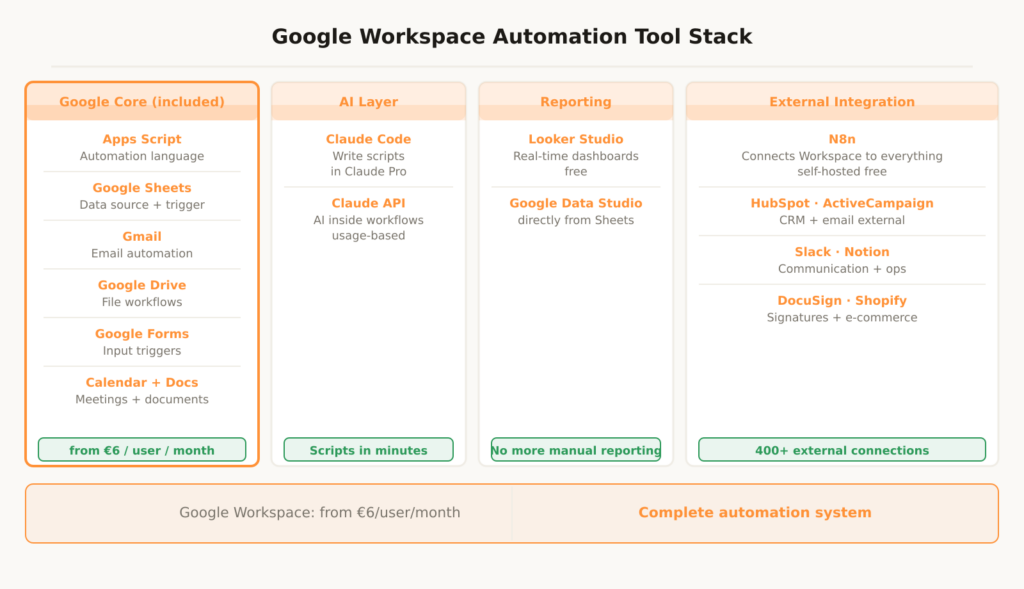
This stack covers all automation levels — from native to fully integrated.
Google Core (included in the Workspace subscription)
1. Google Apps Script
The central automation language for all Google services. Runs in the Google Cloud without an external server, written by Claude Code on demand. Cost: free, included in Workspace. Time savings: 5–15 hours per week depending on workflow depth. Setup: 30 minutes for the first script. Bottom line: The most powerful free automation tool in Google Workspace — and most companies never use it.
2. Google Sheets
The data foundation for invoices, reporting, payment tracking, and all operational processes. Trigger source for Apps Script automations. Direct data source for Looker Studio dashboards. Cost: included in Workspace. Bottom line: Apps Script transforms it from a spreadsheet into a complete operating system.
3. Gmail
Email automation via native filters and Apps Script triggers. Used as the sending tool for all automated emails from workflows. Cost: included in Workspace. Time savings: 1–2 hours daily. Bottom line: Native Gmail filters alone drastically cut inbox overhead — Apps Script makes it fully automatable.
4. Looker Studio
Real-time dashboards directly from Google Sheets — no more manual reporting. Connects with Sheets, Google Analytics, Google Ads, and external sources. Cost: free. Time savings: 1–3 hours per week. Bottom line: Set it up once — all data flows in automatically, permanently.
AI Layer
5. Claude Code
Writes all Google Apps Scripts on demand in natural language — production-ready, with error handling and comments. No programming knowledge required. Cost: included in Claude Pro (€20/month). Setup: none. Bottom line: Makes Google Workspace automation accessible to everyone — regardless of technical background.
6. Claude API
Brings AI intelligence into every Apps Script workflow: classify text, summarize documents, personalize emails, analyze applications. Accessible directly from Apps Script via UrlFetchApp.fetch(). Cost: usage-based. Bottom line: Makes rule-based workflows intelligent.
Integration
7. N8n
Connects Google Workspace with all external tools — HubSpot, ActiveCampaign, Slack, Notion, Shopify, DocuSign, and 400+ more. Self-hosted for free. The complete setup guide is in the article N8n Automation – All the Areas You Can Automate With It. Bottom line: Makes Google Workspace the hub for your entire business ecosystem.
The entire stack costs under €50/month for a small team with Google Workspace Business Starter (€6/user), Claude Pro (€20), and N8n self-hosted (€10–15 VPS) — covering all automations in this article. The ROI in saved work hours exceeds that in the first week.
Google Workspace Automation – The Most Important Questions
Do I need to know how to code to use Google Apps Script?
No — not anymore. Claude Code writes all scripts on demand in natural language. The only things you need to know: how to insert a script into Google Workspace (Extensions → Apps Script), how to set a trigger, and how to run a script manually. That’s three clicks — no programming knowledge required.
What does Google Workspace automation cost?
Google Apps Script, Forms, Sheets, Docs, Drive, and Looker Studio are all included in the Google Workspace subscription — starting at €6/user/month. Most of the automations in this article run exclusively with Google’s built-in tools plus Claude Code. Additional costs only arise when external tools like HubSpot or N8n Cloud are connected.
What are the limits of Google Apps Script?
Apps Script runs with defined usage limits: a maximum of 6 minutes execution time per script run, 90 minutes per day per user, and 100 emails per day via Gmail. For simple to moderate automations, these limits are generous. At very high volume or for long-running processes, N8n is the more scalable solution — both approaches can be combined.
Can Google Workspace be connected to external tools?
Yes — in two ways. First, directly via Google Apps Script: any external API is accessible via UrlFetchApp.fetch() — HubSpot, Notion, Slack, Anthropic, Stripe. Second, via N8n as middleware: native Google Workspace integrations for Sheets, Drive, Gmail, and Calendar, connected to all other tools in the stack.
What’s the first step I can implement today?
The invoice script. Ask Claude Code with this prompt: “Write a Google Apps Script for Google Sheets that automatically generates an invoice as a PDF from a Google Docs template and sends it via Gmail when column A says ‘Create invoice’.” The script runs in under 30 minutes and saves time on every invoice from that point on — the most direct ROI in the entire Google Workspace automation stack.
Is Google Apps Script GDPR compliant?
Google Workspace is available in the EU with GDPR-compliant data processing agreements. Apps Scripts running within Google Workspace are subject to the same privacy conditions as all other Google services. For standard business processes, Google Workspace can be used in a GDPR-compliant way — for particularly sensitive data, a review with your data protection officer is recommended.
This article is updated regularly. New workflows, new Claude Code prompts, and updated practical insights are added here directly.