YouTube Automation – Complete Strategy: Tools & Workflows (−87% Time Savings)
by Sebastian Voppmann
In 2016, after building my first genuinely successful YouTube channel, I ran into a problem I hadn’t expected: the channel was working. The topics landed, the viewers kept coming back. But the effort per video? 20 to 25 hours. Research, script, production, editing, thumbnail, upload, description, tags. Starting from scratch every single time. For every video. That’s not a business model — that’s a full-time job for a single format on a single platform.
What I was doing back then was simply impossible to scale. And that’s the real problem behind every stagnating YouTube channel: not a lack of talent, not a lack of ideas, not a lack of discipline. A missing system.
Today we produce YouTube content for our own brands and for clients — with a fully automated stack that gets the effort down to under four hours per video for the person responsible. One of our channels in the Health & Longevity space is the concrete example in this article: the same channel that nearly failed in 2016 due to production overload now runs a scalable YouTube automation machine — and has become the foundation of a standalone health platform.
What you’ll get in this article: our exact workflow — phase by phase, tool by tool, step by step. With our complete tool list, an honest assessment by cost, simplicity and time savings, and a detailed look at our N8n automation that handles the entire upload process.
Before vs. After: YouTube 2016 vs. YouTube 2026
Before we get into the phases, it’s worth taking an honest look back. What was the standard in 2016? And what does it look like today, ten years later, with full automation?
Without automation – 2016:
- Topic research: Google, manual, hours at a time
- Script: written entirely by hand, 4–6 hours per video
- Editing: no template, every video from scratch
- Removing pauses: manual, minute by minute
- Thumbnail: new design every time
- Upload: manual, title and description typed by hand
- Distribution: no repurposing, YouTube only
- Total: 20–25 hours per video · 1–2 videos per month
With automation – 2026 (our stack):
- VidIQ: keyword set once a month, 20 minutes
- Claude: script first draft in 4 minutes
- Premiere template: editing cut in half, approx. 90 minutes
- Gling: pauses removed automatically in minutes
- Canva template: thumbnail in 8 minutes
- N8n: upload including title and description automated
- Repurpose.io: auto-distribution to 3+ platforms
- Total: approx. 4 hours per video · 4 videos per month
These aren’t theoretical numbers — they’re our own story. Our Health & Longevity channel started in 2016 with nine videos over six months at an average of 22 hours per video. The channel growth stagnated, scaling was simply not possible. Today we produce four videos per month at 3.5 to 4 hours of active effort, have generated over 1,200 percent more views in six months, and turned the channel into the foundation of a standalone health platform. Going from 22 to under 4 hours per video equals 83 percent less time investment at four times more output.
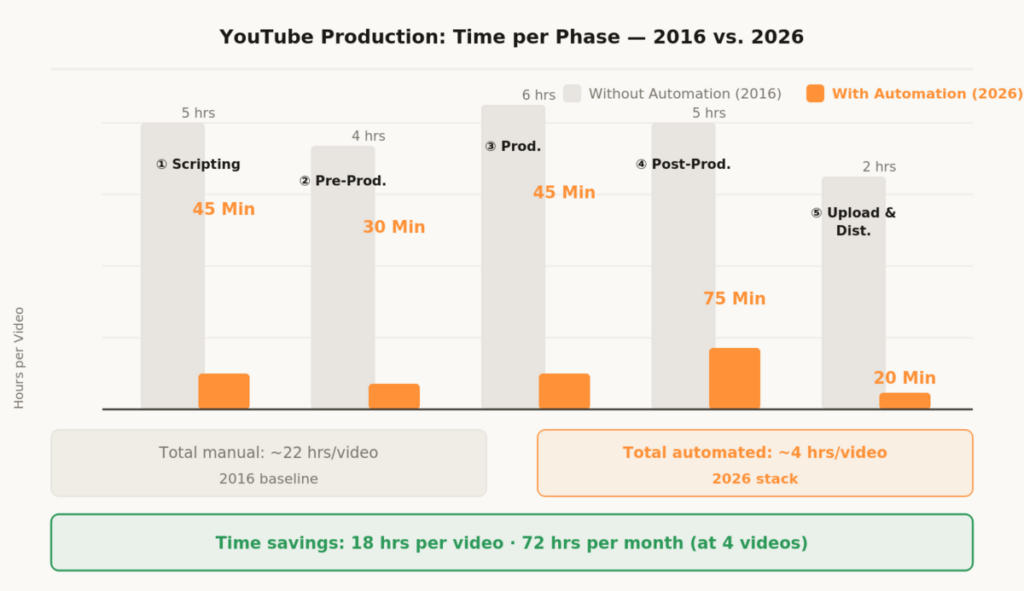
The bottleneck was never missing knowledge or missing discipline. The bottleneck was time — time that was draining away into manual processes that could long have been automated. How the savings break down across the individual phases and where the biggest levers sit is shown in the infographic below.
Phase 01 – Scripting & Ideation Automation
Before (2016): 5 hours per video — Today: 45 minutes per video
In 2015, scripting was the biggest time drain. Finding a topic, thinking through the structure, crafting the hook, writing transitions — five hours per video on a good day. Often seven. The critical mistake back then: every script started from zero. No templates, no structure library, no AI support. Just a blank document and the hope that ideas would come.
The first thing we systematically changed: stop having the content person start from scratch. Today every video follows a defined structure, Claude delivers the first draft in four minutes, and the expert refines it in under an hour with their actual knowledge.
1.1 Topic Research with VidIQ: 20 Minutes Instead of 3 Hours
Install the VidIQ Chrome Extension and Set Up Your Keyword Dashboard
VidIQ shows you search volume, competition strength and trend curves for every keyword directly inside YouTube — without leaving the page. For each channel we set up a keyword dashboard with the brand’s five to seven core topics. VidIQ then automatically delivers new keyword ideas within those topics every week.
Monday Ritual: 20-Minute Review Instead of Daily Research
Every Monday, 20 minutes in VidIQ, select four keywords for the month — one per video. Two evaluation criteria: does the topic fit the brand? Does it have sufficient search volume at acceptable competition? These four keywords go into a Notion board and determine the entire production pipeline for the month. What was a week’s work in 2015 is now 20 minutes.
1.2 Script First Draft with Claude: 4 Minutes Instead of 4 Hours
Build a Custom Script Prompt in Claude — Once, Lasting Benefit
The key is not a generic ChatGPT prompt. For each brand we build a specific Claude prompt that knows the channel’s voice: tone, vocabulary, audience, structure. The prompt contains a proven script structure (hook → problem → deep dive → solution → CTA), six to eight hook templates from the channel’s strongest videos, and clear length guidelines.
Review the First Draft and Elevate It with Real Expertise
Claude delivers the structured first draft in four minutes. The content person does in 35 to 40 minutes exactly what only they can do: add real examples, fill in current data, make the language personal. The result sounds completely like their own voice — because the substantive core comes from the expert.
Iterating the Claude prompt once across three to four versions was the decisive investment: Version 1 still sounded generic — from Version 4 onwards, with real script examples, defined forbidden words and a concrete structure, the first draft is 80 percent done. This effort pays off completely after the second video.
Tools in Phase 1
- VidIQ (from €15/month): keyword research and trend analysis directly inside YouTube — shows you exactly which keywords are worth pursuing before a script is written.
- Claude Pro (€20/month): script first draft based on a custom prompt — in under ten minutes, with your own voice and structure.
- Notion (free): content pipeline, script archive and briefing templates for the entire production.
- TubeBuddy (from €4.50/month): title testing, tag optimization and A/B tests for thumbnails directly in YouTube Studio.
The most common mistake in AI scripting is a prompt that’s too generic — Version 1 always sounds like ChatGPT. The breakthrough comes from Version 4 onwards: add three to five real script examples from your channel, define a list of forbidden words and set a fixed hook-to-CTA structure. At this point the first draft is 80 percent done and sounds like you. This build takes around two hours one time — and pays off completely from the second video onwards.
Scripting is done. Now it’s about organizing production itself smoothly — without email chains and without meetings that just clarify what should have been in the briefing anyway.
Phase 02 – Pre-Production Automation
Before: 4 hours per video — Today: 30 minutes per video
Pre-production sounds like a film industry term, but it applies equally to YouTube. Who shoots what, when, where, with what equipment, with what briefing? In 2016 all of that was verbal agreement or an email chain. Today it runs through a briefing system in Notion that is automatically filled from the script.
2.1 Briefing Template in Notion: The End of the Email Chain
Build a One-Time Briefing Template — Reusable for Every Video
In Notion we built a standardized production briefing that is automatically populated from the approved script for every video: topic, keywords, target audience, desired video length, B-roll requirements, on-screen graphics, CTA wording. A new video means a new briefing — by clicking “Duplicate” in Notion, not by writing a new email.
Set Up Teleprompter App: Consistent Speaking Speed Without Extra Takes
We use Teleprompter Premium (iOS/Android). The script from Notion is transferred directly into the app, reading speed is calibrated once. The result: fewer mistakes, more consistent speaking speed, significantly less post-editing needed in the cut.
With a clear briefing and a calibrated teleprompter setup, pre-production is done — from the former four hours down to thirty minutes.
- Keyword selected from the Notion board and entered in the briefing?
- Briefing template in Notion duplicated and fully filled out?
- Script created by Claude, reviewed and personally refined?
- Script transferred to teleprompter app and reading speed calibrated?
- B-roll requirements and desired on-screen graphics noted in the briefing?
- Recording date set and studio setup ready to go?
Phase 03 – Production: Build the Setup Right Once
Before: 6 hours per video (including setup and teardown) — Today: 45 minutes per video
The biggest time waste in production in 2015: no permanent studio setup. Position the camera, set up the lights, check the audio, figure out the background — every time new, every time different. The result: varying video quality and structural time loss before every recording.
3.1 Permanent Setup as a Systemic Decision
Build the Setup Once, Never Take It Down Again
A fixed camera-light-audio setup that stays in place and isn’t moved. Sony ZV-E10 or similar, ring light or softbox in a defined position, Rode Wireless GO II on the body. The setup stays. Starting a recording session means: turn on camera, open app, record. No setup, no teardown, no realignment.
Record in Segments — Not in One Take
We record in thematic segments, not the entire script in one take. Segment done → short break → continue. This allows better energy per segment and simplifies editing significantly: the editor knows exactly which segments belong together.
For channels without face on camera, the entire production phase can be skipped: HeyGen (AI avatar) or ElevenLabs Voice Cloning handle the recording directly from the script — eliminating the physical shoot but raising the demands on script and post-production. Whether with or without camera: a permanent setup that stays in place is the decisive step — from the former six hours down to 45 minutes per video.
Phase 04 – Post-Production: Templates & AI Editing
Before: 5 hours per video — Today: 75 minutes per video
Post-production was the second massive time drain in 2016 after scripting. Edit every video entirely by hand, build the intro, build the outro, add subtitles, choose music, color correction, choose export settings. Six hours per video, often more. Today: 75 minutes — through two strategic decisions: Premiere templates and Gling.
4.1 Adobe Premiere Edit Templates: Build Once, Use Forever
Create a Premiere Template Project — The Heart of Edit Automation
In Adobe Premiere we build a master template project with a predefined sequence structure: intro (10 sec., with brand opener), content sequence with a predefined color grading setting, subtitle preset (font, size, position, color — all brand-compliant), outro (15 sec., with CTA and social media note), music tracks with preset volume parameters and fade-out. Every new video begins with “Duplicate Template” — never start from scratch again.
Document Editing Standards in a Cuts Library
In Notion we built a cuts library: which transition for which type of content, which sound effect for which moment, which on-screen graphic for which information. New editors can cut to brand standard in two hours — because the decisions are already documented and don’t have to be made from scratch every time.
4.2 Gling: Remove Pauses Automatically in Minutes
Install Gling and Upload Raw Footage — AI Handles the Rough Cut
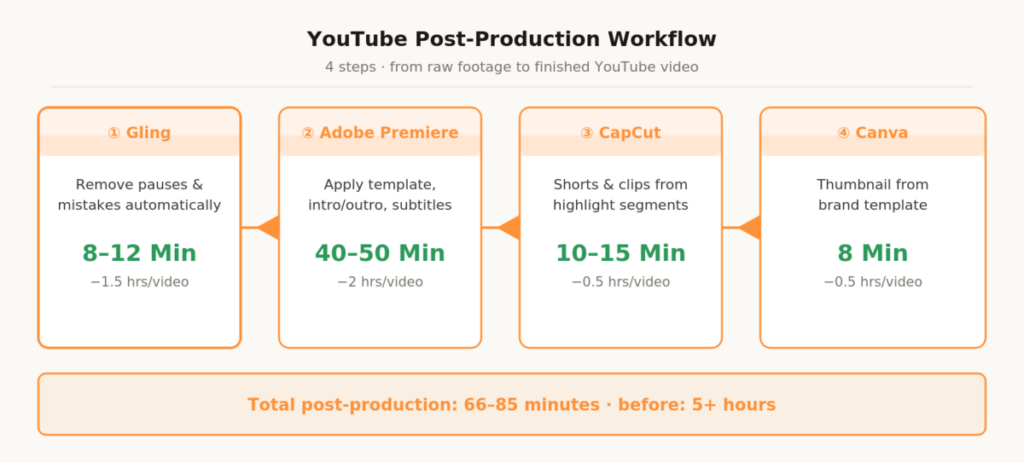
Gling is an AI-powered editing tool that automatically removes silence, mistakes, long pauses and filler words from raw footage. The process: upload raw file to Gling → AI analyzes audio and marks all problem areas → you see a preview and can remove all marked sections with one click or approve them individually. What used to be 90 minutes of manual editing now takes 8 to 12 minutes with Gling.
Import Gling Export into Premiere and Apply Template
After the Gling rough cut, you export the project directly as an Adobe Premiere sequence or as a cut mp4. The Gling export goes into the template sequence, intro and outro are added, subtitles are created with the predefined preset — the fine cut is done. The entire editing process including Gling: 60 to 75 minutes instead of the former 4 to 5 hours.
Phase 05 – Upload & Distribution: Fully Automated with N8n
Before: 2 hours per video (manual) — Today: 20 minutes active + automatic upload
Upload in 2015 was the least productive work in the entire process: wait for the file to upload, write the title, write the description, enter tags, upload thumbnail, set the schedule, enter chapters, set the end card. An hour of work that generates zero creative value. Today the entire upload process runs through an N8n automation we built once and that has processed every video independently ever since.
5.1 Place the Finished Video File in the Google Drive Upload Folder
The only manual step in the upload process: drag the finished mp4 file into a defined Google Drive folder. From this moment, N8n takes over completely. No opening YouTube Studio, no typing titles, no filling in the tags field.
5.2 N8n Detects the New File Automatically
N8n monitors the Google Drive folder with a Google Drive Trigger. As soon as a new file appears, the workflow starts automatically. N8n extracts the filename, file path and timestamp and passes this information to the next step.
5.3 N8n Generates Title, Description and Tags via Claude API
N8n sends the filename and the stored keyword from the Notion board to the Claude API with a specific YouTube metadata prompt. Claude returns: three title variants (optimized for 60 characters), an SEO-optimized description with primary and secondary keywords, 20 relevant tags, and a chapter structure if a script outline is stored.
5.4 Select a Title: Automatic or Manual
N8n can be configured to automatically use title variant 1 — or to send a Slack message with all three titles to the content person, who selects the desired variant with a button click. We use variant 2: a brief manual check-in, everything else runs through automatically.
5.5 YouTube Data API: Upload and Schedule the Video
N8n uses the YouTube Data API v3. The video is uploaded with the selected title, description, tags, thumbnail and publishing schedule as status “Scheduled”. N8n automatically sets the date to the next configured upload day, for example every Tuesday at 8:00am.
5.6 Notification: Upload Confirmation and Link
After a successful upload, N8n sends a Slack message with a direct YouTube Studio link to the scheduled video, the publication date and the metadata used. Optionally the Notion entry is automatically updated to “Uploaded” and the next video in the pipeline is set to “In Production”.
Running in parallel with the YouTube upload is a second N8n branch: the finished YouTube link goes to Repurpose.io, which automatically distributes the video to Instagram Reels, TikTok and LinkedIn — with platform-specific descriptions that N8n generated via Claude beforehand. One video, three additional platforms, zero extra effort after the setup.
N8n is not a no-code tool for beginners. Plan for these requirements:
- Basic technical understanding: APIs, JSON structures and webhooks must not be foreign concepts.
- YouTube Data API v3: Must be activated in the Google Cloud Console — OAuth 2.0 setup required.
- Anthropic API Key: Separate API billing — not a Claude Pro subscription, but your own API access.
- Hosting: Self-hosted on a VPS (approx. €5–10/month) or N8n Cloud (from €20/month).
- Alternative: Make.com offers a similar workflow without code — less flexible, but significantly easier to set up.
Our Complete Tool Stack — Rated by Cost, Simplicity and Time Savings
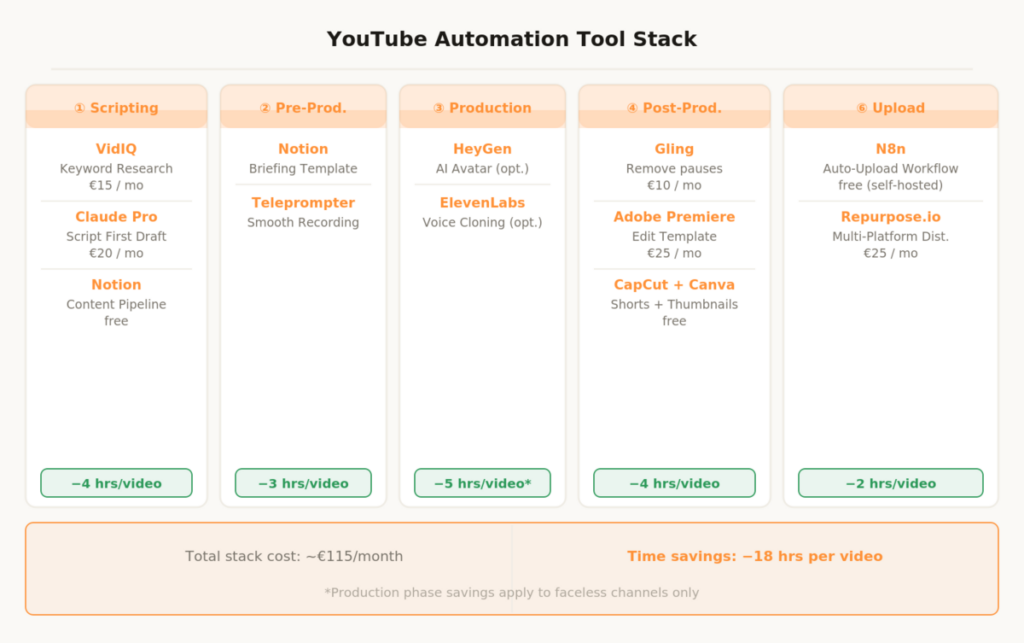
This list is the current state of our production stack, as of May 2026. Every tool was tested by us over several months in real production processes before appearing here. Cost, simplicity and time savings are our personal experience values.
Research & Scripting
1. VidIQ
Search volume, competitor analysis and trends directly in YouTube — shows you exactly which keywords are worth pursuing before you write a script. No tool switching required, everything runs in the browser. Cost: from €15/month. Time savings: 2–3 hours per month. Setup: very easy. Our verdict: Essential for any serious channel.
2. Claude Pro
Script first draft based on a custom prompt in under ten minutes. Also indispensable for metadata generation in the upload workflow. Cost: €20/month. Time savings: 4 hours per video. Setup: moderate. Our verdict: Our most important AI tool in the entire stack.
3. TubeBuddy
Title testing, tag optimization and A/B tests for thumbnails directly in YouTube Studio. Good for long-term channel growth through SEO. Cost: from €4.50/month. Time savings: 1 hour per month. Setup: very easy. Our verdict: Worthwhile from the channel growth phase onwards.
4. Notion
Keyword board, script archive and production briefings in one system. Also the data source for the N8n automation workflow. Cost: free. Time savings: 1 hour per video. Setup: very easy. Our verdict: The foundation of the entire production system.
Production
5. Teleprompter Premium
Scrolling script on smartphone or tablet, read directly to camera. Fewer mistakes, better flow, less editing work afterwards. Cost: approx. €10 one-off. Time savings: 1 hour per video. Setup: very easy. Our verdict: An instant upgrade for anyone shooting on camera.
6. ElevenLabs
AI voiceover based on your own voice clone — no shooting required, multilingual. Only relevant for faceless channels without an on-camera presenter. Cost: from €22/month. Time savings: 3 hours per video (faceless channels only). Setup: moderate. Our verdict: Only makes sense for faceless channels.
7. HeyGen
Realistic AI avatar reads the script — no shooting required, scales to any number of videos. Quality is now good enough for informational content. Cost: from €29/month. Time savings: 5 hours per video (avatar channels only). Setup: moderate. Our verdict: Not for personal brands, but powerful for scalable information channels.
Post-Production
8. Gling
Automatically removes pauses, filler words and mistakes from raw footage — without a single manual cut. Exports directly as a Premiere or DaVinci project. Cost: from €10/month. Time savings: 1.5 hours per video. Setup: very easy. Our verdict: The biggest single time saving in the entire stack.
9. Adobe Premiere
Professional editing based on reusable template sequences. The initial build takes time — but from video 2 onwards the savings are clearly felt. Cost: approx. €25/month. Time savings: 2 hours per video. Setup: moderate. Our verdict: The template investment pays off from the second video.
10. CapCut
Quick creation of shorts and social media clips from the main video. Best option for anyone who doesn’t want a separate editing tool for short formats. Cost: free. Time savings: 0.5 hours per video. Setup: very easy. Our verdict: Free solution for fast clip creation.
11. Canva
Thumbnails from a brand template created once — consistent look across all videos, exported in under eight minutes. Channel identity through consistency. Cost: free / €12/month for Pro. Time savings: 0.5 hours per video. Setup: very easy. Our verdict: Consistency beats creativity when it comes to thumbnails.
Upload & Distribution
12. N8n
Google Drive → Claude → YouTube API: fully automated upload workflow. Built once in around four hours, runs independently for every video ever since. Cost: free (self-hosted). Time savings: 1.5 hours per video. Setup: technically demanding. Our verdict: Built once — then it runs.
13. Repurpose.io
Auto-distribution to Instagram, TikTok and LinkedIn directly after the YouTube upload. One video — four platforms, without a single manual step. Cost: €25/month. Time savings: 1 hour per video. Setup: very easy. Our verdict: Essential as soon as you’re active on more than one platform.
14. Opus Clip
AI automatically selects the strongest 60-second clips from the main video — including auto-captions and reframing for portrait format. Alternative to CapCut for more automation. Cost: from €15/month. Time savings: 0.5 hours per video. Setup: very easy. Our verdict: More automation than CapCut, but paid.
All tools together cost around €115 per month — less than a single freelance video day at the lowest rate. At four videos per month and 18 hours saved per video, that works out to around €0.28 per saved working hour.
Results: What the Automation Stack Actually Changes
These numbers reflect our own development — not average values from studies, but data we’ve drawn from over 200 produced videos across ten years:
- Time per video: approx. 22 hours → approx. 4 hours (−83%)
- Videos per month: 1–2 videos → 4 videos (+300%)
- Channel growth in 6 months: stagnated → +1,200% views
- Repurposing: 0 platforms → 3+ platforms (fully automated)
- Tool costs per month: approx. €0 → approx. €115 (investment with ROI)
- Upload process: 100% manual → 90% automated (N8n workflow)
The most important effect isn’t the time saving alone — it’s what it enables: consistency. Regular content is the strongest lever for channel growth — and consistency only becomes possible when the effort per video drops to a manageable level. This is where marketing automation and YouTube production meet: the system is what makes the output sustainable.
YouTube Automation – The Most Important Questions
How much technical experience do I need for the N8n workflow?
N8n is technically more demanding than Make.com or Zapier. You should have a basic understanding of APIs, JSON and OAuth authentication. Without that knowledge, we recommend Make.com as a more beginner-friendly alternative — the YouTube upload workflow can be built there with similar results without code. N8n makes sense once you want more control over the workflow and want to minimize costs long-term.
From how many videos per month does the automation stack pay off?
The tool costs pay off through saved time from as few as two videos per month. At one video per month the stack still makes sense — but the time savings only justify the setup effort from the third or fourth video. Our recommendation: build the stack when you’re genuinely planning to publish regularly. Not before.
Can AI really write in my voice or does it sound generic?
A generic ChatGPT prompt sounds generic. A well-developed custom prompt in Claude with your own script examples, structure guidelines and forbidden words sounds 80% like you. The remaining 20% — personal anecdotes, current data, specific expertise — you add yourself. The prompt build needs three to five iterations, but it’s a one-time effort.
What’s the difference between Gling and Descript for automatic editing?
Gling specializes in exactly one task: removing pauses, mistakes and filler words — fast, simple, cheaper. Descript is a full editing tool based on a transcript with significantly more features (Overdub, screen recording, multi-track editing), but also considerably more complex and expensive. For pure pause removal, Gling is our clear favorite. For complex post-production with multiple speakers or screen content, Descript is the better choice.
How do I create an Adobe Premiere edit template that actually saves time?
The template consists of a Premiere sequence with a predefined structure: intro segment (10–15 sec.), an empty content slot where the finished raw material goes, outro segment (15–20 sec.) and four tracks — video, audio, music, subtitles. Define the color grading preset once and save as a LUT. Save the subtitle style as an Essential Graphics template. Save the export settings as a preset. From the second video: duplicate the project, insert new raw material, apply template — done.
How long does it take to build the complete automation stack?
The initial build of the complete stack including N8n workflow, Claude prompt, Premiere template, Notion pipeline and Repurpose.io setup realistically takes three to five working days for someone who doesn’t yet know the tools. For experienced users, one to two days. The stack is then scalable across multiple channels simultaneously — without investing proportionally more time.
This article is updated regularly. Every time we integrate a new tool into our workflow or improve an existing process, it flows directly in here.