Apple Automation – How Entrepreneurs Put iPhone, iPad and Mac to Work
by Sebastian Voppmann
Most Apple users operate their devices reactively. The iPhone rings, you look at it. A notification comes in, you open it. An invoice lands on the desk, you photograph it manually. The Mac runs, you open apps by hand. That’s not a criticism — it’s simply the default mode most people are stuck in.
Apple has built a complete automation ecosystem over the past few years, deeply integrated into iPhone, iPad, and Mac. Shortcuts, Focus Modes, Automator, AppleScript, Back Tap, NFC triggers — all of it is already on your devices. It’s just waiting to be used.
This article shows how I use Apple automation as an entrepreneur every day — and how SMB owners and freelancers can massively accelerate their daily processes with the Apple devices they already own. No technical degree needed, no third-party apps in most cases, no monthly subscription costs. Just using the full potential of devices you’ve already paid for.
What Apple Automation Means — and Why SMBs Underestimate It
Apple automation is the counterpart to N8n and Google Apps Script — but for your personal work ecosystem rather than server-based business workflows. Where N8n moves data between tools, Apple automation moves your attention and your daily actions.
The three core questions for entrepreneurs are: Which actions do I perform manually multiple times a day that always follow the same pattern? Which contexts — work, meeting, evening — require completely different device setups? And which information created on my devices — photos, documents, notes — doesn’t automatically land where it’s needed?
The answers to those three questions are your automation candidates. And Apple provides ready-made tools for all three categories — free, already pre-installed, deeply integrated into the system. Once you understand how these tools work together, you start seeing your iPhone, iPad, and Mac as an active work system rather than a collection of passive devices.
What makes the Apple ecosystem unique compared to other automation solutions: the devices and tools are already paid for. No new subscription, no new server, no new platform. The automation is literally in your pocket — it just needs to be activated. And the entry point is easier than any other automation stack, because there’s no technical setup process: the Shortcuts app is pre-installed, Focus Modes are in Settings, Automator is in the Applications folder.
Area 01 – iPhone Automation with Shortcuts
The Shortcuts app is the most powerful automation tool on the iPhone — and simultaneously the most underrated. A shortcut is a sequence of actions executed with a tap, a Siri command, a schedule, or an automatic trigger. What many don’t know: Shortcuts can also send HTTP requests and trigger N8n workflows — making the iPhone a remote control for the entire business stack.
1.1 Scanning and Automatically Filing Invoices
This is one of my most-used iPhone shortcuts. Before: pick up the invoice, open the camera, take a photo, find the photo, upload to Google Drive, move it to the right folder, rename it. Five to seven steps, two to three minutes.
Now: open the shortcut — or trigger it via Back Tap on the back of the iPhone. The shortcut opens the document scanner directly, I scan the invoice, the document is automatically saved as a PDF, named with the current date and a defined naming structure, and uploaded directly to the Google Drive inbox folder. From there, N8n triggers the invoice processing workflow automatically. Total time: under thirty seconds.
1.2 Daily Briefing via Shortcut
Every morning I start the workday with a single tap on a shortcut. What happens: today’s calendar events are displayed, open reminders from today’s list are read out, the current weather forecast is shown and — if desired — Claude opens directly for the first briefing of the day. Everything in one action, without opening any apps manually.
For entrepreneurs this can be extended: query revenue figures from a Google Sheet via Shortcut, load top 3 tasks from Notion, have last night’s Slack messages summarized. The daily briefing takes two minutes — and you start with full context instead of in reactive blind mode.
1.3 Meeting Shortcut
Before every meeting I run a shortcut: set Focus Mode to “Meeting”, silence the ringer, open the Notes app with a new meeting note (pre-filled with the date and attendees from the calendar event), optionally start a timer in the clock. One tap — and the setup is done before the first word is spoken.
1.4 Back Tap as a Universal Trigger
Back Tap is one of the iPhone’s least-known features: double or triple tapping the back of the iPhone triggers a defined action. I’ve set Back Tap (double) to the invoice scan shortcut and Back Tap (triple) to the voice note recorder. No need to open an app, no scrolling through the home screen. Idea comes? Triple tap, speak, done.
For SMB owners, Back Tap is particularly valuable in situations where you need to act quickly: receipt received, idea in a meeting, task at a client’s. The physical trigger is faster than any app navigation.
An important aspect of Shortcuts that many overlook: Shortcuts can communicate directly with external systems via the URL scheme or via HTTP request. This means an iPhone Shortcut can trigger an N8n webhook, call the Claude API, or send data to HubSpot — fully automated, without the user doing anything other than running the shortcut. That makes the iPhone not just a personal productivity tool, but an active interface to the entire business stack.
Don’t build a hundred shortcuts — these five are enough to get started and deliver immediate ROI: Invoice Scan (scan → PDF → Drive), Daily Briefing (calendar + tasks + weather), Meeting Setup (focus + note + timer), Voice Note to Notion (speak idea → auto-transcribed → saved in Notion), and End of Day (activate focus + save browser tabs as reading list). Every one of these five shortcuts can be set up in under 15 minutes.
Area 02 – Focus Modes as a Work Operating System
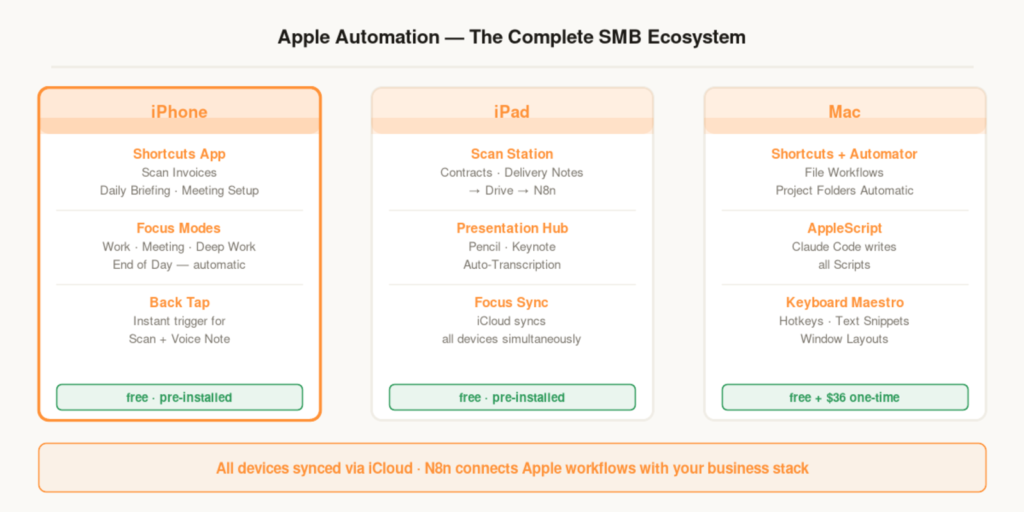
Focus Modes are the most underrated productivity feature on all Apple devices. Most users only know “Do Not Disturb.” Focus Modes are the opposite — they are active work contexts that define which apps, notifications, and widgets are visible in which situation. And they sync automatically via iCloud across all Apple devices simultaneously.
2.1 The Work Focus
My Work Focus is the mode where I spend most of my productive time. All social media notifications are blocked — no Instagram, no TikTok, no Twitter. Only calls from defined contacts (team, important clients) come through. The iPhone home screen shows only productivity apps: Notion, Claude, Calendar, Mail, Google Drive. The Lock Screen shows the next three calendar events and open tasks.
This Focus activates automatically: Monday through Friday from 9 to 12 and 2 to 6 pm. No manual switching on. The device switches independently into work context — and switches back out just as independently.
2.2 The Meeting Focus
The Meeting Focus activates automatically when a calendar event begins that contains the word “Meeting,” “Call,” or “Interview” in the title. All notifications go silent, display brightness drops to 50 percent, Mac automatically opens Notion on the meeting notes page, iPhone shows only Notes and Timer.
The meeting ends → Focus deactivates automatically → all notifications come back. No manual switching before and after every conversation. That sounds like a small detail — after a month of daily use you notice how much mental effort that small detail saves.
2.3 The Deep Work Focus
For intensive work phases — writing articles, developing strategy, complex analysis — I use the Deep Work Focus. It’s more restrictive than the normal Work Focus: not a single notification comes through. The iPhone home screen is empty down to one single app. The Mac Dock shows only the program I’m currently working in. It’s activated manually when I start a deep work session — or automatically when I put in AirPods and music from my deep work playlist starts.
2.4 The End of Day Focus
The End of Day Focus activates daily at 7 pm. All business email accounts go silent, Slack is blocked, only private contacts can call. For SMB owners this is one of the most effective automations of all — not because it speeds up work, but because it enables genuine recovery. Someone who responds to Slack messages all evening is never truly offline. The End of Day Focus makes switching off automatic, without willpower.
Area 03 – iPad Automation
The iPad is underestimated in many businesses — either as a pure media consumption device or as a stationary meeting device. But in a fully automated Apple ecosystem, the iPad is an independent productivity tool with properties that neither iPhone nor Mac can replicate as easily: the large touchscreen for handwritten notes, the high-quality camera for document scanning, and the portability for on-the-go. The iPad is the device between iPhone and Mac for entrepreneurs — and is rarely fully automated. Yet it has some unique automation capabilities that neither iPhone nor Mac can replicate as easily.
3.1 iPad as a Scan Station
The iPad with its high-quality camera is ideal as a scan station for physical documents — contracts, delivery notes, handwritten notes, multi-page documents. A shortcut on the iPad handles the same workflow as on the iPhone: scan document → save as PDF → automatically file in Google Drive → N8n trigger starts further processing.
For businesses with regular incoming paper documents, the iPad as a dedicated scanning device is a simple, affordable alternative to expensive office scanners. The scan quality of newer iPad models is fully sufficient for all standard documents.
3.2 iPad as Presentation and Notes Hub
With the Apple Pencil and Shortcuts, the iPad can be automated as a complete presentation and notes system. Shortcut at the start of a client meeting: activate screen mirroring to the external display, open presentation in Keynote, start microphone recording for automatic transcription. After the meeting: shortcut ends the recording, transcription runs automatically, notes are saved in Notion, follow-up task is created.
3.3 Focus Sync Across All Devices
All Focus Modes sync automatically via iCloud between iPhone, iPad, and Mac. When the Work Focus is activated on the iPhone — automatically or manually — iPad and Mac switch to the same context simultaneously. The entire Apple ecosystem behaves consistently, without needing to configure each device separately. Set it up once, effective everywhere.
Area 04 – Mac Automation
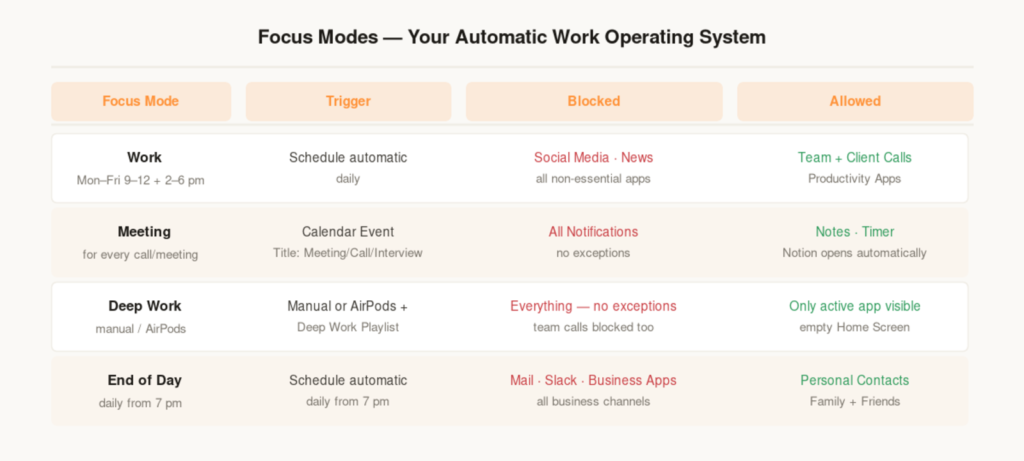
The Mac is the most powerful automation platform in the Apple ecosystem. From simple Shortcuts to full AppleScript programs — the capabilities on the Mac go far beyond what iPhone and iPad offer.
4.1 Mac Shortcuts for Daily Workflows
Shortcuts on the Mac work identically to the iPhone — with the advantage that they can be triggered via keyboard shortcuts or the menu bar. Important Mac Shortcuts for entrepreneurs: create a document folder for a new project (keyboard shortcut + enter project name → complete folder structure in seconds), automatically name screenshots and file them in Google Drive, display a daily calendar overview as a notification.
4.2 Automator for File Workflows
Automator is Mac’s built-in automation tool for file-based processes — free, pre-installed, usable without programming knowledge. What it can handle: automatically rename all PDFs in a folder according to a scheme, automatically scale images to a defined size, automatically convert documents to a specific format.
A concrete example: an Automator workflow monitors the Desktop folder. As soon as a new file is placed there, it is automatically sorted by file type — PDFs into the invoices folder, images into the media folder, documents into the project folder. The Desktop stays permanently clear without any manual tidying.
4.3 AppleScript with Claude Code
AppleScript is the most powerful automation language in the Mac ecosystem. For most entrepreneurs it’s not necessary to write AppleScript themselves — Claude Code handles it completely. Describe the requirement in plain language, get the finished script back, paste it into Script Editor, run it.
Example prompt: “Write an AppleScript that moves all files in the Downloads folder that are more than 30 days old to the Archive folder on the external hard drive.” Claude Code delivers the finished script in under two minutes. The script then runs automatically every Monday as a scheduled task — without any manual intervention.
4.4 Keyboard Maestro
Keyboard Maestro is the only third-party app in this stack — and the only one I consider essential. It enables fully customizable keyboard shortcuts for any action on the Mac: activate specific window layouts with a single keystroke, expand text snippets (e.g., “@@” expands to the full email signature), open apps in a defined sequence, manage a clipboard history of the last 50 entries.
One-time cost of $36 — after that you save minutes every day that add up to hours over months. For any Mac user who works more than four hours a day at the computer, this is the highest ROI investment in this entire article.
A concrete everyday example: the text snippet system. Anyone who writes the same email greetings, closing phrases, payment terms, or standard replies every day loses five to ten minutes doing so. Keyboard Maestro expands an abbreviation like “@pay” instantly to “Payment is due within 14 days of the invoice date. Please don’t hesitate to reach out with any questions.” Set it up once, use it permanently. After three months, depending on your writing volume, you’ll have saved two to four hours with it.
Area 05 – Apple Automation for SMB Processes
The individual tools only show their full effect when assembled into process automations — specifically tailored to the reality of SMBs and the self-employed.
5.1 The Client Onboarding Workflow
New client signs → iPhone Shortcut opens the document scanner → contract is scanned and saved as PDF → automatically loaded into Google Drive in the new client folder → N8n triggers the onboarding workflow: welcome email via ActiveCampaign, new HubSpot entry, onboarding task in Notion. Everything triggered by a single shortcut on the iPhone. What used to be ten minutes of follow-up runs fully automatically in thirty seconds.
5.2 The Expense Receipt Workflow
Receipt received → Back Tap on iPhone → document scanner opens → scan receipt → PDF is automatically saved to the Google Drive folder “Expenses/[Month]” and named with the current date → at month’s end: a shortcut collects all PDFs of the month, creates a summary document, and sends it by email to the accountant.
Never collect receipts again, never search at month’s end for where a receipt ended up. The workflow costs a one-hour setup — and saves at least two hours of receipt chaos every month thereafter.
5.3 The Content Ideas Workflow
Idea comes — in the car, during exercise, at the supermarket. Triple Back Tap → voice recorder opens → speak the idea → recording is automatically transcribed and saved as text in Notion in the content ideas database. No forgetting, no “I’ll look at that later” — the idea is immediately in the system, structured, searchable, ready for the next content planning session.
5.4 The Structured End-of-Day
Every evening at 6:30 pm a shortcut runs automatically: all open browser tabs are saved as a reading list, the three most important tasks for the next day are loaded from Notion and set as reminders, the End of Day Focus activates, the Mac automatically opens the task app for a final daily review. Structured end of the workday — automatic, every day, without willpower.
The psychological effect of this workflow is underestimated: anyone who leaves the office every evening with a clear picture of the three most important tasks for tomorrow sleeps better, starts more clearly, and avoids the disoriented morning scroll through inbox and Slack. Apple automation is not just time savings here — it’s a structure provider for the entire work rhythm.
- Week 1: Set up Work Focus and End of Day Focus — automatic by schedule
- Week 2: Build the invoice scan shortcut and set Back Tap
- Week 3: Set up daily briefing shortcut + Meeting Focus with calendar trigger
- Week 4: Set up Mac Automator workflow for desktop cleanup
- Month 2: Install Keyboard Maestro, configure hotkeys and text snippets
- Month 3: Connect Apple Shortcuts with N8n — iPhone as trigger for business workflows
The Complete Apple Automation Stack
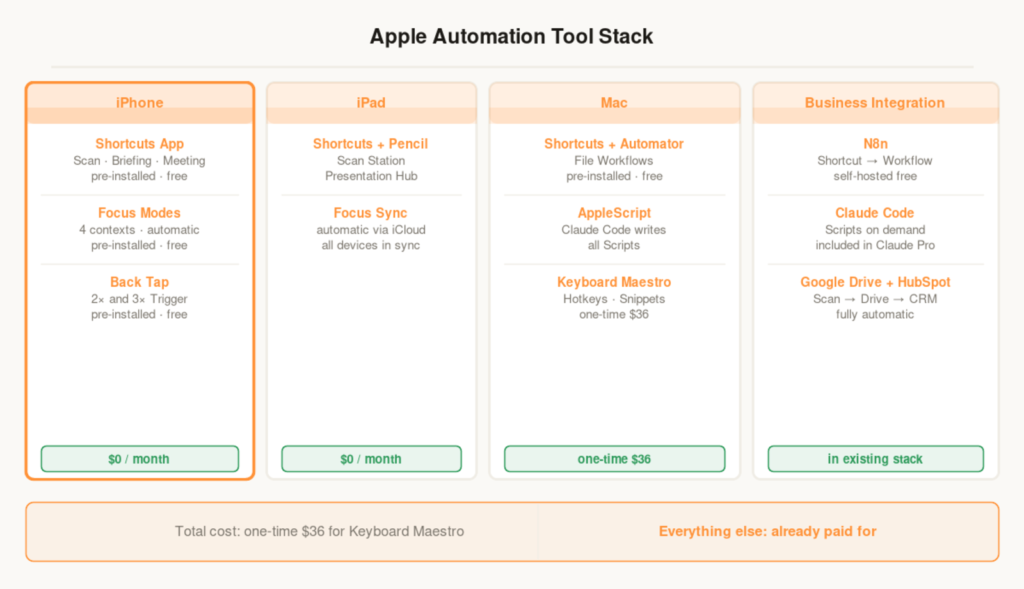
This stack covers all devices and all automation levels. The decisive advantage over all other stacks in this article series: almost everything is already paid for.
iPhone (pre-installed · free)
1. Shortcuts App
The central automation tool on the iPhone. Scan invoices, daily briefing, meeting setup, receipt capture, content ideas by voice — all in one app. Cost: free, pre-installed. Time savings: 30–60 minutes daily. Setup: very easy. Bottom line: The most important entry point for all iPhone automations — five shortcuts are enough for immediate ROI.
2. Focus Modes
Context-based work operating system for all Apple devices simultaneously. Work, Meeting, Deep Work, End of Day — automatically activated by schedule or calendar event. Cost: free, pre-installed. Setup: easy. Bottom line: The most effective productivity automation on the iPhone — prevents distraction systematically without willpower.
3. Back Tap
Physical quick trigger for two defined shortcuts — double or triple tap the back of the iPhone. Cost: free, pre-installed. Setup: two taps. Bottom line: Fastest access to the most important workflows without a single glance at the screen.
Mac
4. Automator
Mac’s built-in automation tool for file-based workflows without code. Rename, sort, convert, clear the desktop — all automatically. Cost: free, pre-installed. Time savings: 1–2 hours per week. Setup: easy. Bottom line: An underrated Mac built-in — replaces expensive file management tools entirely.
5. AppleScript + Claude Code
Advanced Mac automation on demand — Claude Code writes all scripts in plain language. Cost: free (Script Editor pre-installed) + Claude Pro for script creation. Setup: moderate. Bottom line: Makes Mac automation accessible without any programming knowledge.
6. Keyboard Maestro
The only paid third-party tool in the stack. Hotkeys, text snippets, window layouts, clipboard history — all customizable. Cost: one-time $36. Time savings: 20–40 minutes daily. Setup: easy. Bottom line: Highest ROI in the entire stack — pays for itself for any Mac user in the first week.
Business Integration
7. N8n
Connects Apple Shortcuts with the entire business stack. iPhone scans invoice → N8n handles further processing in Google Drive, HubSpot, ActiveCampaign. Cost: self-hosted free. Bottom line: Makes the iPhone a remote control for the entire automated business stack.
Total cost: $36 one-time for Keyboard Maestro. Everything else is either pre-installed, included in the Google Workspace subscription, or already part of the existing business stack. Apple automation is the only automation category in this article series that costs almost nothing — because it’s already paid for.
Apple Automation – Frequently Asked Questions
Where should I start as an SMB owner?
With the invoice scan shortcut and the Work Focus. Both can be set up in under 30 minutes, solve daily problems immediately, and directly show what Apple automation can do. Then set Back Tap — double for scan, triple for voice note. These three automations together already noticeably change how the iPhone feels as a work tool.
Does Apple automation work with Android and Windows tools in the stack?
Yes — via N8n and HTTP requests. Apple Shortcuts can send webhooks to N8n that trigger any workflow — regardless of which other tools are in the stack. The iPhone becomes a remote control for any automated business workflow, even if the rest of the stack runs on Google, Microsoft, or other platforms.
How complex is AppleScript really?
For simple tasks — moving files, opening apps, processing text — AppleScript is directly readable. For more complex automations, Claude Code writes the scripts fully on demand. Most entrepreneurs don’t need to understand AppleScript themselves — Claude Code translates the requirement into finished code.
Can Shortcuts be shared between devices?
Yes — Shortcuts sync automatically via iCloud between iPhone, iPad, and Mac. Shortcuts can also be shared as links: a shortcut built once can be installed on another device with a tap, without having to rebuild it from scratch.
What’s the biggest mistake with Apple automation?
Building too many shortcuts that you never actually use. Every shortcut should automate a daily or at least weekly task. The rule of thumb: if a manual action is performed more than three times a week and always follows the same pattern, it’s an automation candidate. Everything else stays manual. Five well-used shortcuts beat a hundred forgotten ones.
Apple automation is not a one-time project — it’s a system that grows with your work rhythm. Someone who starts today with five shortcuts and two Focus Modes will find, after three months, twenty automations so ingrained they can barely imagine what the workday looked like before. That’s the compound effect of automation: each automation on its own is a small improvement — together they fundamentally change the way you work.
This article is regularly updated. New workflows, new shortcuts, and updated real-world examples are incorporated directly here.